

Quick answer
Last updated: August 22, 2026
Open the completed game in GameChanger, go to the Plays tab, copy the full play-by-play text, then paste it into the GC Stats import box on Import / Export. Save the game context with it, and GC Stats turns that raw text into a searchable game record.
If you were expecting a direct GameChanger import button, this copy-and-paste workflow is the practical workaround that works today.
A short example we use to test the importer
This sanitized sequence is part of the parser's regression coverage. It is short enough to show what the importer reads without using a team's private game record.
Ava Rodriguez doubles on a line drive to center fielder.
Zoe Carter singles on a ground ball to right fielder. Ava Rodriguez scores.
Mia Johnson homers on a fly ball to center fielder.
From those three lines, GC Stats identifies three hitters, a double, a single, a home run, and the named run scored by Ava. A full completed-game paste gives the parser the inning, pitching, baserunning, score, and defensive context that this short sample leaves out.
Step 1: copy the full Plays text from the completed game
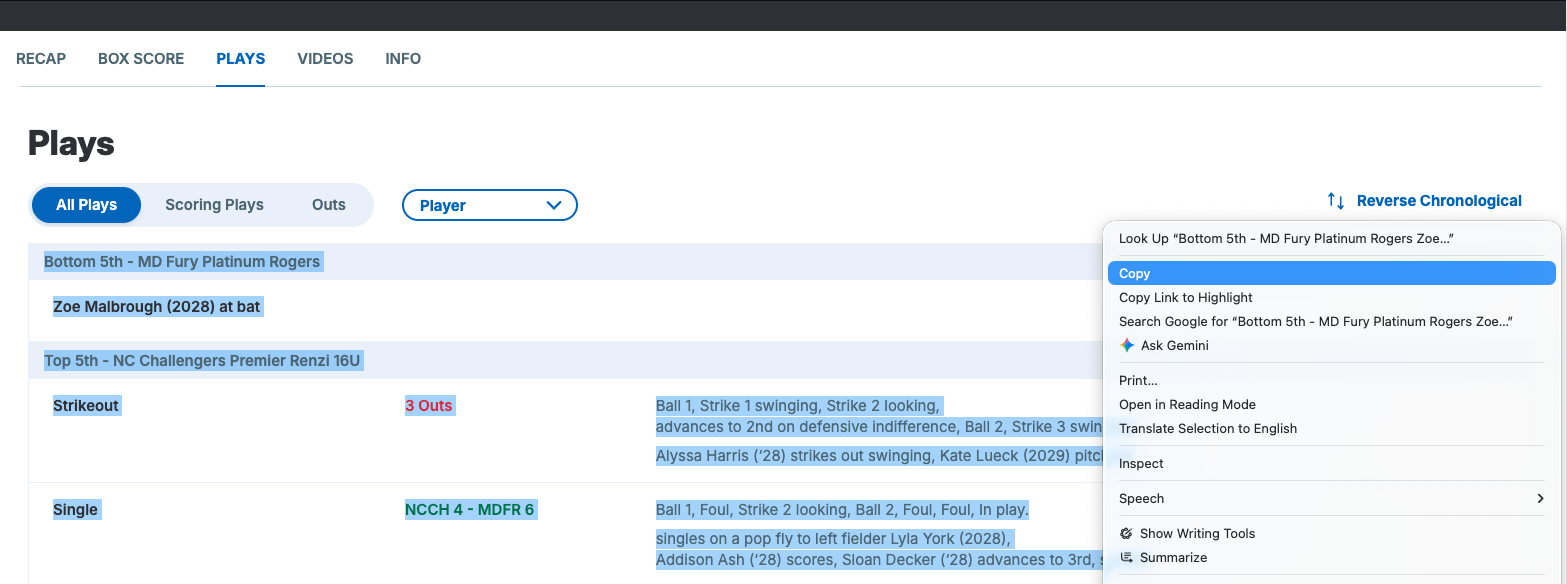
Use a completed game
The parser works best once the game is finished and the full sequence of plays is available, not while the game is still live.
Copy the full text
Do not grab only a few innings or a few rows. Copy the whole play-by-play block so score changes, player events, and inning flow stay complete.
Stay on Plays
The safe path is the Plays text from the completed game. If you are jumping around between views, make sure you still copied the actual play-by-play text.
Step 2: open GC Stats Import / Export and paste it into the import box
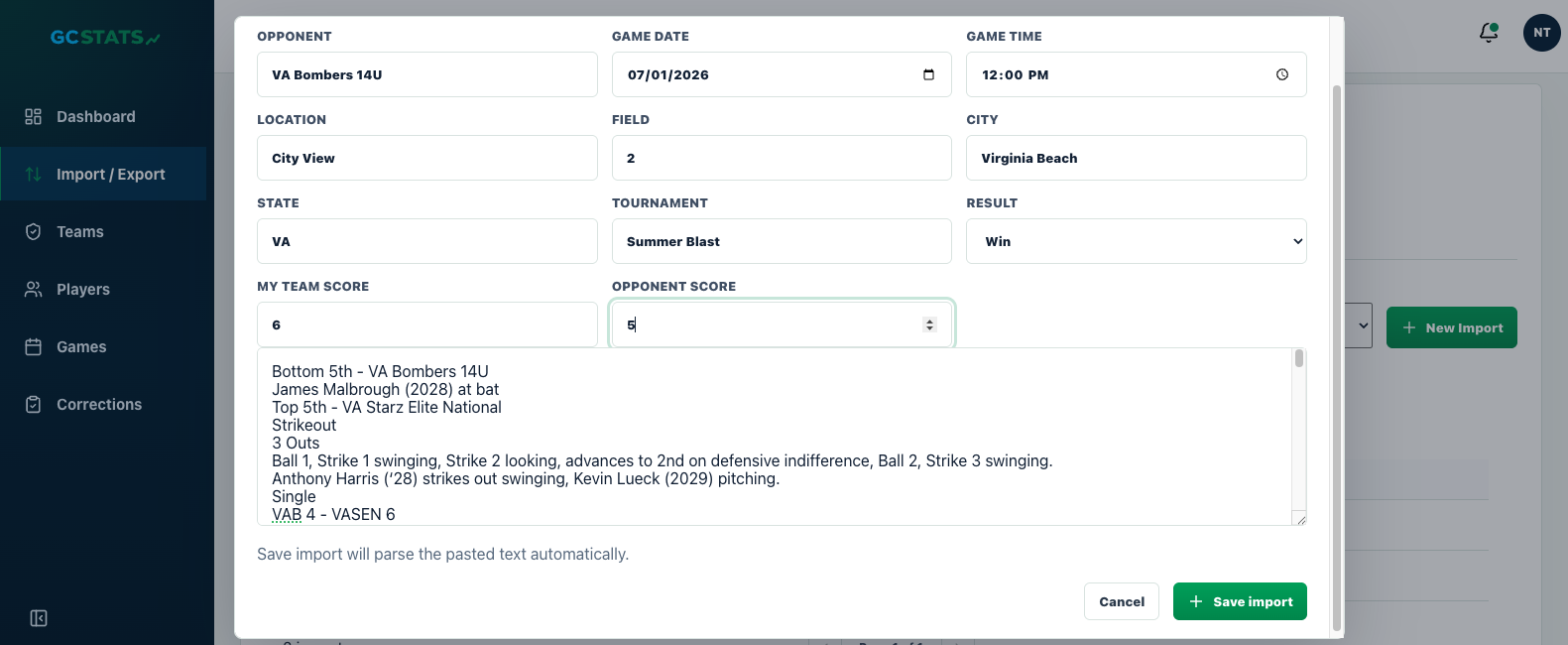
Select the right team and season
Make sure the import is going into the correct team and season so the stats land where you expect them later.
Add the game details while you are here
Opponent, date, location, tournament, score, and result are easier to keep straight when they are saved with the import instead of added from memory later.
Save the import
Once saved, the play-by-play is no longer trapped in one app view. It becomes part of the season data you can search, review, and build on.
Common mistakes that block the import
Copying only part of the game
If the paste starts mid-game or cuts off early, you lose the full scoring and inning context that helps the parser rebuild the record.
Using an in-progress game
Live games can leave the text incomplete. Wait for the completed game whenever possible so the paste reflects the final sequence.
Saving under the wrong team
If the wrong team or season is selected, the import may look like it disappeared when it actually landed in the wrong place.
Skipping the game context
Even when the raw text parses, leaving out opponent or date details makes the season harder to search and explain later.
What you get after the import
- A saved game record tied to the team and season
- Searchable player and game stats instead of one pasted block of text
- A correction workflow when a row needs a second look
- Season data that can later feed Coach Insights, lineup cards, and exports
Before using those totals for a leaderboard or lineup, follow the softball stat import review checklist while the completed game is still available.
When this guide is the right answer
A new user just confirmed their account
This is the exact handoff point where people often know they have a game in GameChanger but do not know what to copy or where to paste it.
The export option is not available
If the account cannot export a CSV file, play-by-play import is usually the practical path that still lets the team move forward.
You only need one game in right now
Copying one completed game can be the fastest way to get the season started instead of waiting on a broader export workflow.